 Sluice
Point Sluice at a pile of photos. It sorts them by date and sifts out the junk.
Nothing goes missing
Sluice deletes a photo or video in one situation only: when a file with the identical bytes is already somewhere else on your disk.
Everything else it does to a photo is a move or a copy. A photo it decided against is not thrown away, it is put in a folder you can open, with a note saying why. Every run ends by naming each folder it put photos in and how many went there, so you can go and count.
You do not have to take any of this on trust. Sluice is free and open source, so every rule on this page is a line of code you can go and read.
How it works
Four steps, and the app's dashboard runs them in that order. You can stop after any of them.


Sort
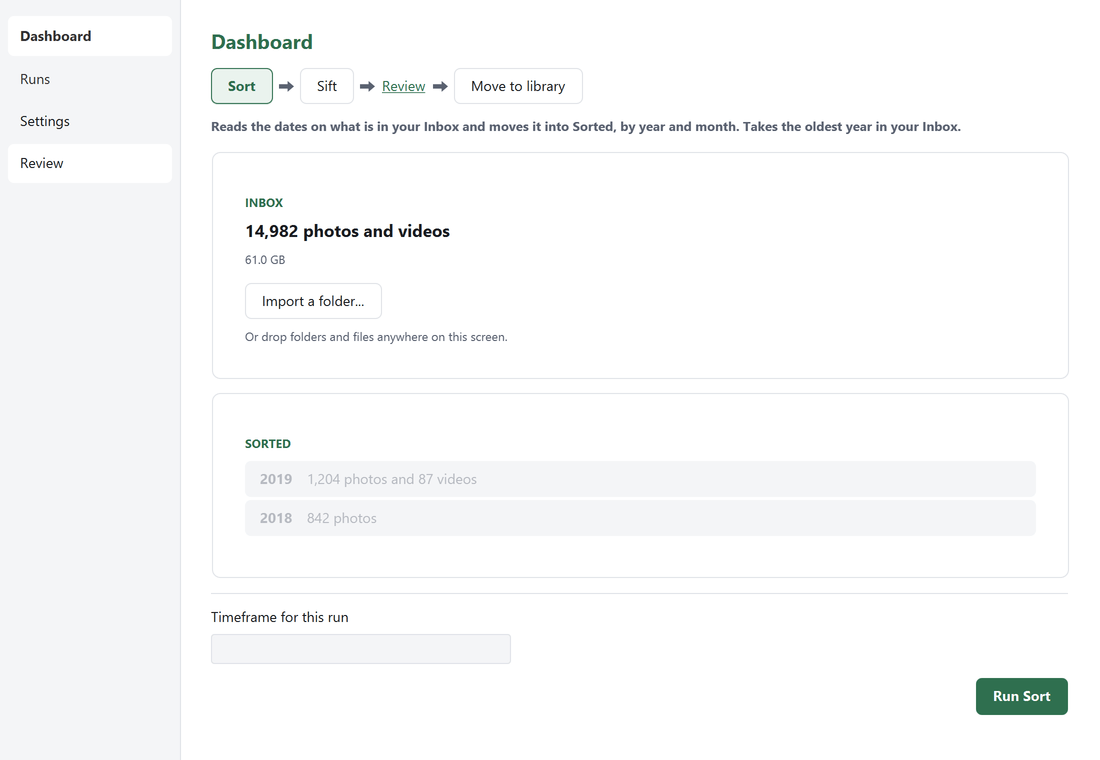
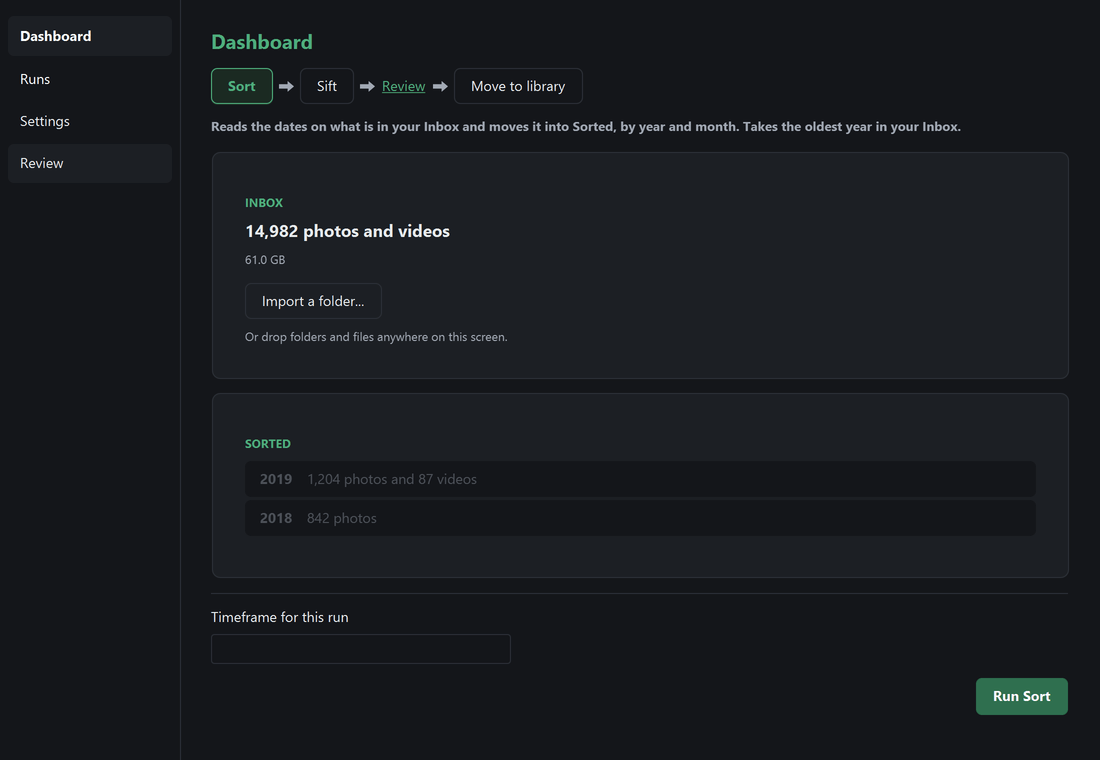
Drop photos and videos onto the screen Sluice opens on, or point it at a folder to bring in. It reads the date on each one and files it under a year and a month.
Anything already in your library, byte for byte, is deleted from your Inbox rather than filed twice. The copy in your library is untouched. A second copy inside the same batch goes the same way.
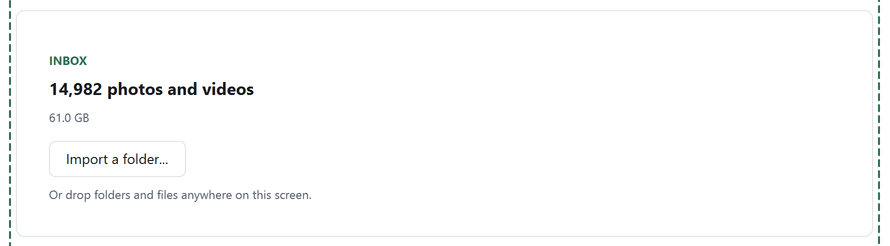
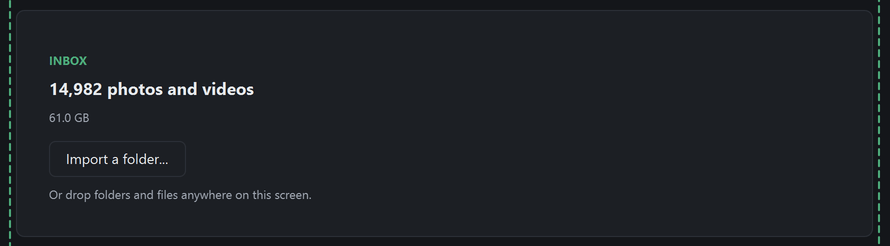
The dashed edge is the screen ready to take a drop. Sift
Sluice does not judge photos itself. It tiles them onto sheets and hands the sheets to something that can look: an agent already running on your computer that can work with files, or a model you pay for with your own API key.
Sluice has no service of its own to send anything to. With an agent it writes the sheets into a folder and reads the answers back, and where your agent takes them from there is between you and it. With a model you pay for, Sluice does the sending, and what goes is the sheets: small tiles rather than your originals, with each photo’s name and date alongside.
Before a run starts, Sluice says roughly how many tokens it expects to spend. It stops and asks if a sift goes far past that.
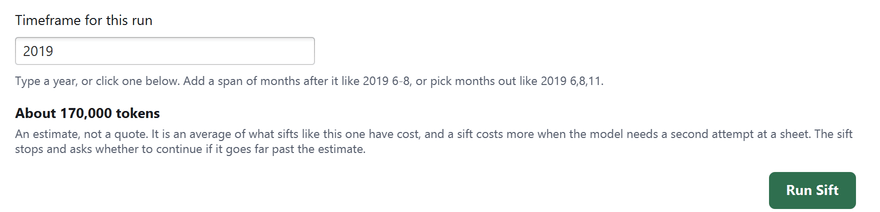
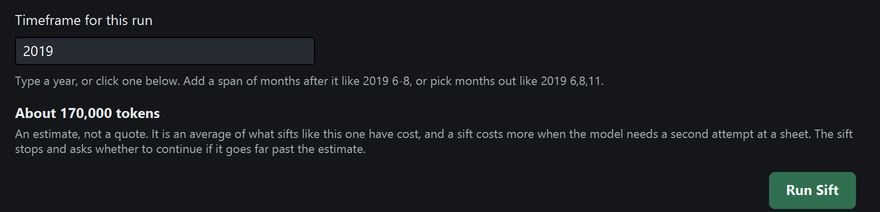
What a sift of one year is expected to use, before it starts. Review
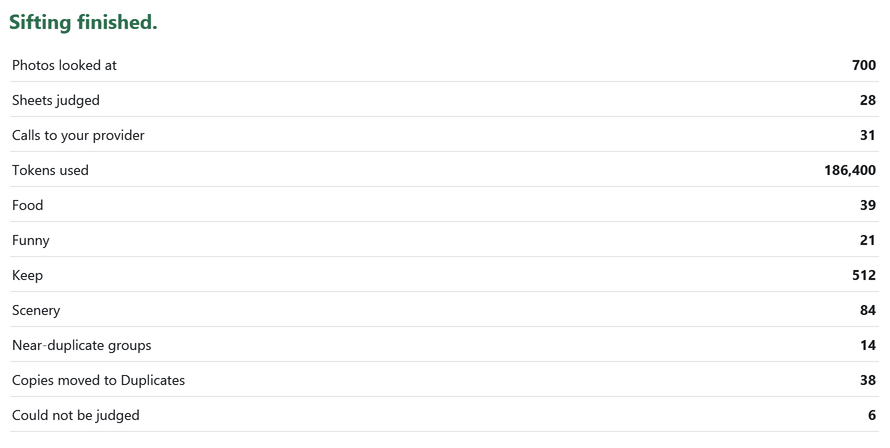
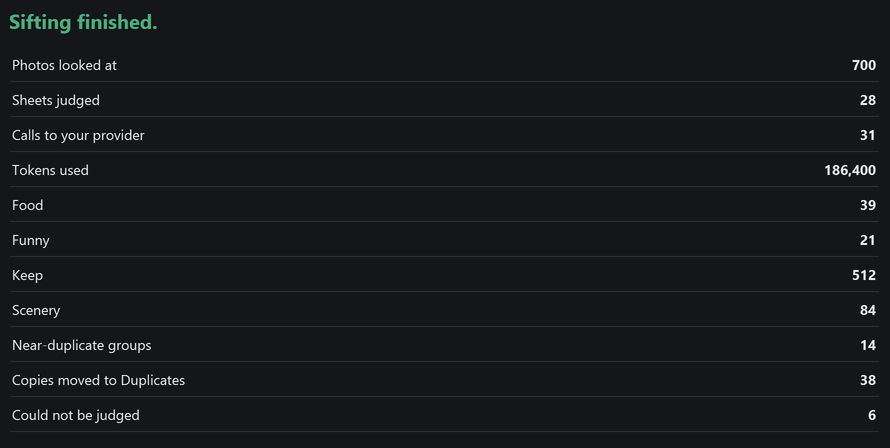
Nothing it decided against is thrown away. Each reason gets its own folder, with a note beside the photos saying what was judged about each one.
Open folder takes you into it, where you delete what you agree with yourself. Rescue to Sorted puts the rest back to be sorted with everything else.
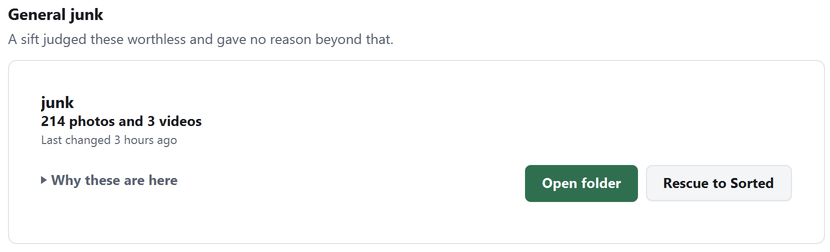
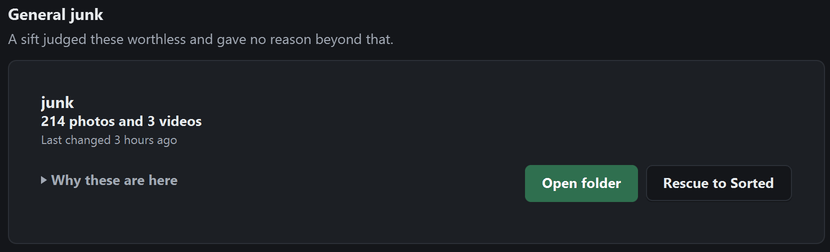
One folder per reason, each with a way in and a way back. Move to library
When you are happy with what is left, the keepers move into your library, under the same year and month folders.
That folder is an ordinary folder. Back it up, sync it, or open it in whatever you already use.


A move under way. The percentage is how far across the current file it is.
Setting it up
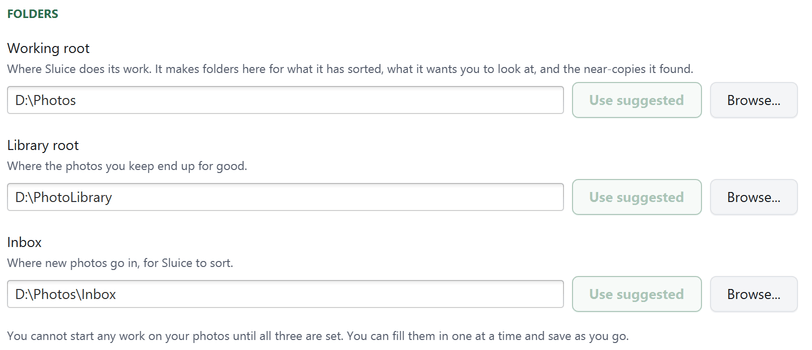
Three folders and one choice. Sluice will not touch a photo until the three folders are set, and it suggests a sensible answer for each.
Three folders
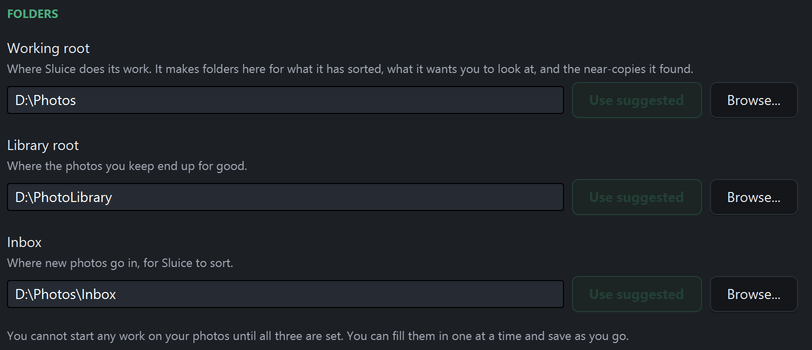
Your Inbox is where new photos go in. Your Library is where the ones you keep end up for good. Between them sits a Working root, where Sluice does its work and keeps what it has sorted, what it wants you to look at, and the near-copies it found.
The Library and the Inbox have to be separate folders, and neither may sit inside the other. Your Inbox may not hold the Working root either. Pick a Working root that is not synced to the cloud: Sluice moves a lot of files through it, and a sync client would upload every one of them.
What looks at your photos
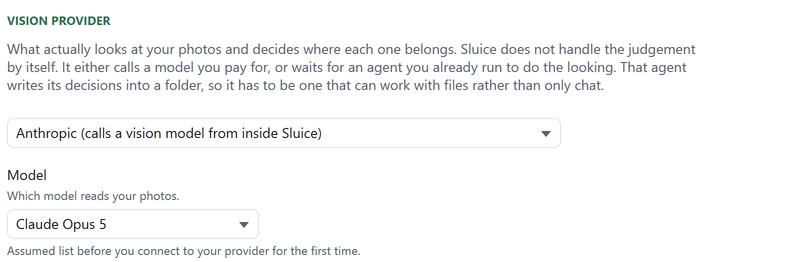
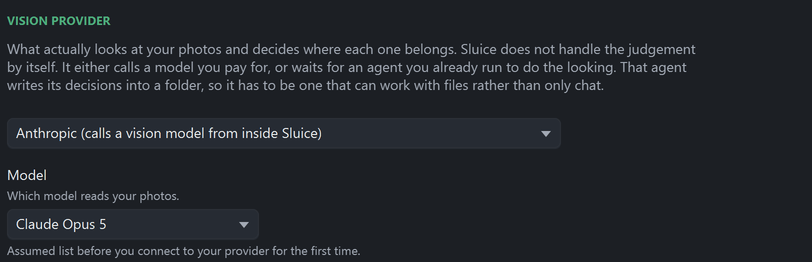
Sluice ships no model of its own, and this is the choice that decides what it costs you.
An agent you already run. Anything on your computer that can read images and write files - Claude Cowork, for example. Sluice lays out the sheets, your agent writes its answers back into a folder, and Sluice carries them out. Sluice sends nothing anywhere and charges you nothing on this route, because it is your agent doing the looking. What that agent costs you, and where it takes the sheets, is between you and it.
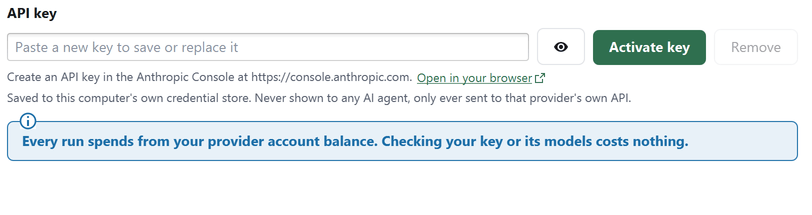
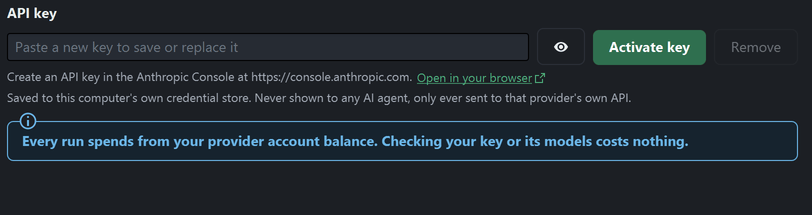
A model you pay for. Give Sluice an API key and it calls the model itself. The sheets go to the provider you picked, with each photo's name and the date it was taken. Your original files never do. What you spend is between you and them, on your own account.
What belongs in each category
A sift always takes out the plainly worthless. Beyond that, you say what you want set apart, in your own words, and each category becomes a folder of that name.
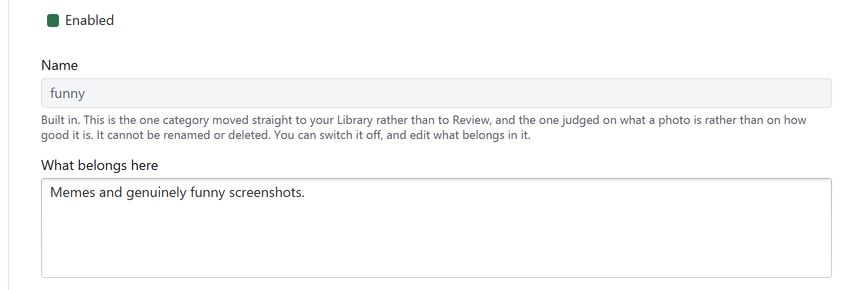
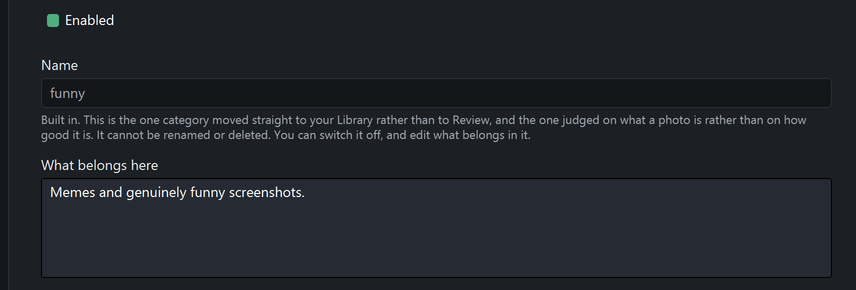
Sluice starts with three. Two of them wait for you in Review, scenery for unremarkable views and food for meals and menus. The built-in one, funny, works the other way: memes and screenshots are kept, and go straight to your library. It is also the only one judged on what a photo is rather than on how good it is.
Change what belongs in any of them, switch one off, or add your own. The built-in one keeps its name.
Sheets
Photos are not judged one at a time. Sluice lays them out in a grid on a sheet, and whatever is doing the looking reads a whole sheet at once. That is why a sift's progress is counted in sheets rather than in photos.
When a run does not finish
A sift can be interrupted, and an agent can take its time answering. Neither loses the work already done.
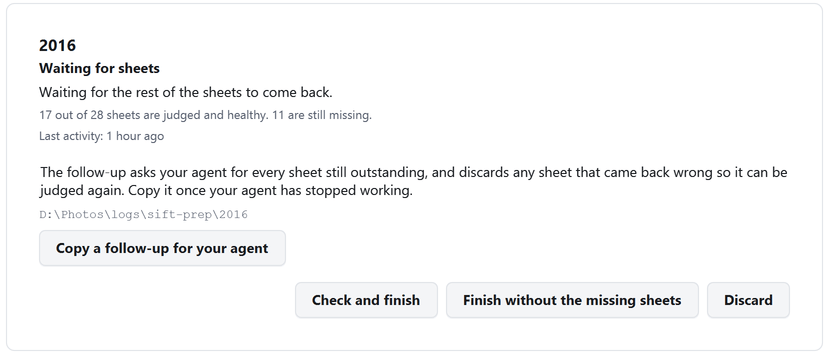
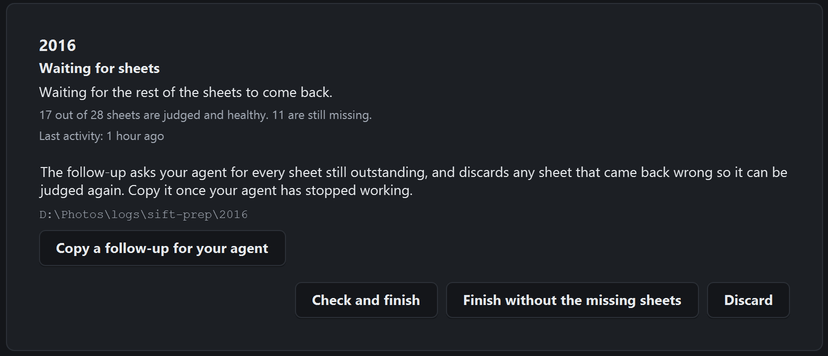
The Runs screen waits for you
Every sift that has not finished sits on the Runs screen with what it is waiting for. Answers come back a sheet at a time, so a run stopped halfway keeps the sheets already judged and asks only for the rest.
Check and finish picks the run back up from where it stopped. Finish without the missing sheets picks it back up without waiting for the ones that have not arrived. Discard throws the sift away. Nothing moves until you pick.
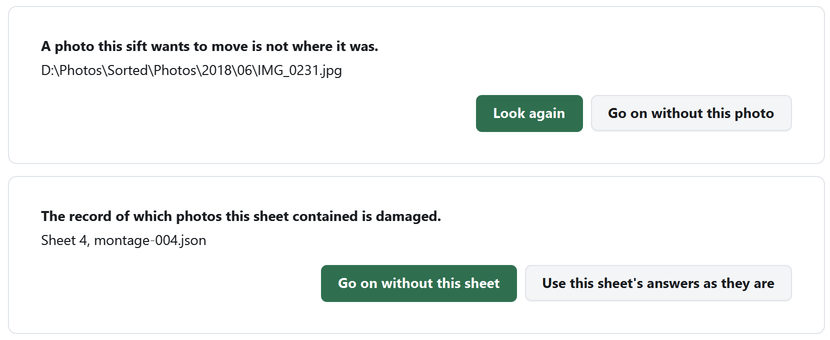
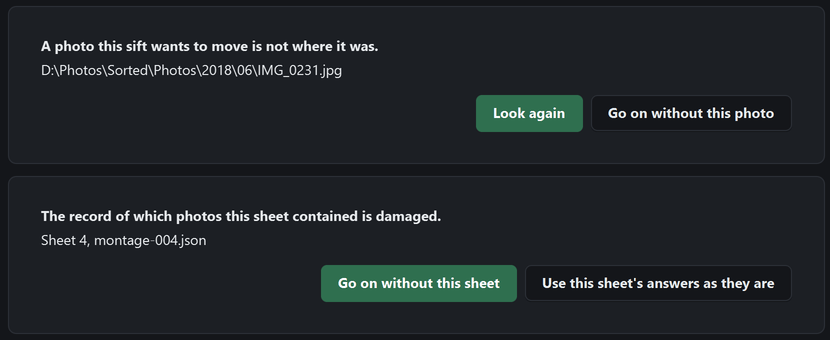
It says what it cannot do, one problem at a time
A photo moved out from under a run, a damaged record, an answer that cannot be read: each is listed on its own, in words, with the choices that would clear it.
It puts right what it safely can on its own, says how many, and shows you the rest. There is a copyable technical detail underneath for anything you want to send on.
Where your API key is kept
If you point Sluice at a model you pay for, it has your API key. That key goes into whatever your operating system keeps credentials in - Windows Credential Manager, the macOS Keychain, or the Secret Service on Linux - rather than into a settings file beside your photos. Where none of those can be written to, it falls back to a file in your own account's application data, with every other account's access to it removed.
It checks that last part rather than assuming it. Sluice narrows the file to your account, reads the permissions back to confirm the filesystem applied them, and refuses to store the key at all where it could not.
Each provider has an environment variable of its own, ANTHROPIC_API_KEY for Anthropic. Set that and it wins over the other two, so a machine you would rather leave nothing on does not have to hold anything. Settings says where your key was saved.
Download
Windows 10 or later (64-bit) · macOS (Apple Silicon & Intel) · Linux (any distribution, amd64 or arm64)
On Windows, sluice.exe installs itself with no prompts and no choice of folder. That is deliberate, not a step skipped. Find it afterwards from the Start menu, or use the portable zip above if you would rather choose where it lives - that folder is self-contained and can be moved afterwards, or run straight off a USB drive.
On macOS, drag Sluice into your Applications folder before opening it. It will not update itself while it sits in Downloads.
Its tests run on macOS every week, and its screens are checked there whenever they change, though nobody has sat and used it on one.
On Linux, the .deb is for Debian, Ubuntu and their derivatives. It adds Sluice's apt repository, so later versions arrive with the rest of your updates. Every other distribution takes the tar.gz instead. Unpack it wherever you like, then run bin/SluiceDesktop inside it. Nothing is installed system-wide that way. Nothing updates itself either, so the next version is another download from here.